

Quiz Maker Question Types
Experiment with various types of quiz questions to increase engagement and make the quiz more interactive and personalized.

10+ Question Types
Create quizzes that are unique and interactive by incorporating different types of questions depending on your needs.
Add Images to Questions and Answers
Make your quizzes more interesting by including images in questions and answers.
Add Messages and Explanations
Offer users an explanation or advice on how to proceed with the quiz questions.
Organize Questions with Categories and Tags
Keep track of your quizzes by categorizing questions into categories and tags.
Popular Question Types Available
Choose from a wide variety of popular question types such as multiple choice, dropdown, image-based, and open-ended questions to match any quiz. Combine different formats within a single quiz to create more dynamic and engaging user experiences. Each question type is designed to help you collect accurate responses while keeping the quiz intuitive and easy to complete.
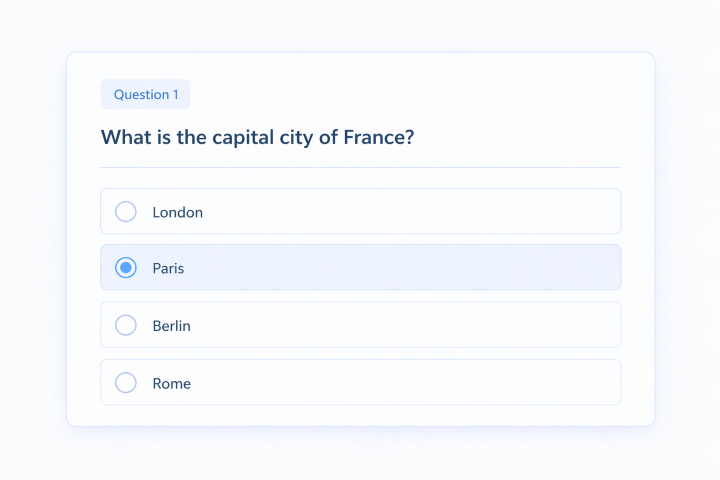
Radio (Single Choice) Question Type
Let users select one correct answer from a list of options. This is the most common question type, perfect for quick decisions and simple quizzes. It is ideal for tests that require a single correct response.
Checkbox (Multiple Choice) Question Type
Allow users to select multiple answers from a list. Great for questions where more than one option can be correct. This helps you capture deeper insights and more flexible responses.


Dropdown Question Type
Save space and keep your quiz clean by displaying answer options in a dropdown menu. Perfect for long lists or when you want a more compact design. Works especially well on mobile devices.
True/False Question Type
Create simple questions with just two response options. Ideal for instant knowledge testing and fast evaluations.Keeps users engaged with minimal effort.


Text / Short Text Question Type
Let users type their own answers in a short or long text format. Ideal for collecting open-ended responses, names, or quick feedback. Add a personal touch to your quizzes.
Hints, Explanations & Answer Messages
Clarify and improve each question by providing feedback to the user. Users will have access to hints for guidance to answer the questions, explanations for each correct answer, and additional information depending on how the user answered. Additionally, you can customize messages for both correct and incorrect answers to help users become more engaged and interpret their responses.

Fill in the Blanks Question Type
Ask users to complete sentences by filling in missing words. Great for testing knowledge, language skills, or attention to detail. Make quizzes more interactive and dynamic.
Number / Date Question Type
Receive exact numerical or date-based answers from users. Ideal for mathematical operations, getting age information, scheduling, and data collection.


Matching Question Type
Ask users to match corresponding items from both the lists. Useful for educational quizzes, vocabulary, and concept matching. Promote critical thinking skills.
Upload Files Question Type
Allow users to upload files directly within the quiz. Useful for assignments, applications, or collecting documents. Makes your quiz more powerful and functional.


Info Banner
Insert blocks of information between questions in order to assist or educate users. Very useful for giving instructions, tips, or providing more information concerning the quiz questions.
Use Cases
See what type of quizzes you can create with different question types.
Lead Generation Quizzes
Gather information such as email addresses and turn website visitors into potential clients. All 10+ question types can be used.
Personality Quizzes
Use images and multiple-choice questions to assess personality types or offer suggestions about the most appropriate products or results for the user.
Educational Tests
Use single choice, multiple choice, and true/false question types to accurately evaluate knowledge and create structured scoring-based tests.
Feedback Collection
Open-ended questions can be used to collect detailed responses and feedback from users. Get the needed data from the simple quiz.
Interactive Content
Use a mix of interactive question types like matching questions to create engaging experiences that keep users actively involved and increase time on site.
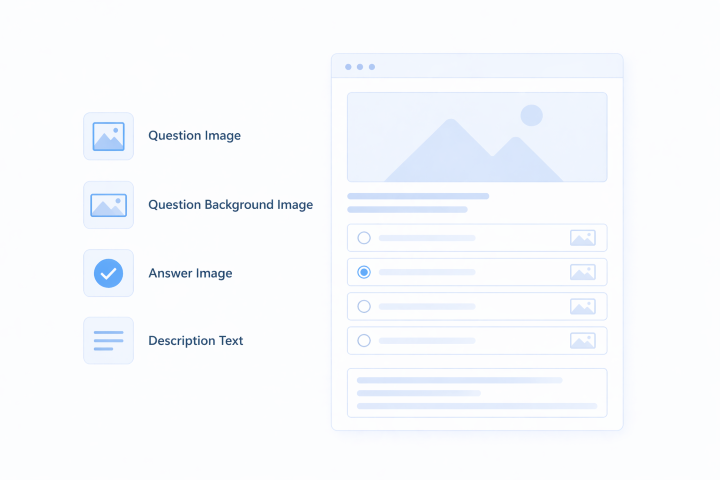
Visual Question Customization
- Visual Customization
- Question Image
- Question Background Image
- Answer Image
- Description Text
Make your quizzes more engaging and visually attractive by adding media and design elements to every question. You can use question images to support the context, set background images for a more engaging look, and add images to answers to improve clarity and interaction. Combined with description text, these options help you create more intuitive, attractive, and user-friendly quiz experiences.
How It Works
Create Questions
Build your quiz by adding questions using 10+ question types and customization options.
Insert to the Quiz
Organize and structure your questions inside the quiz flow in the desired order.
Publish Quiz
Make your quiz live so users can start interacting with it and submitting answers.
Frequently Asked Questions
What question types can I use in the quiz builder?
There are various question types are available in the Quiz Maker plugin, including single choice questions, multiple choice questions, dropdown questions, true or false questions, text entry questions, matching questions, file upload questions, and so on. You can check all the available question types in the detailed guide.
Can I add images or visual elements to my questions?
Yes, you can enhance your quizzes by adding images to questions, answers, and even backgrounds. This helps make your quizzes more engaging and easier to understand, especially when visuals are needed to support the question context.
Is it possible to give feedback to users after they answer a question?
Of course! You can add hints, explanations, and custom responses for both right and wrong answers. This makes the process more engaging for the user, as the users will not just provide an answer but learn something as well.
How can I organize large quizzes with many questions?
You can organize your quiz using categories and tags, which makes it much easier to manage large sets of questions. This structure also helps you reuse questions across different quizzes and keep everything well organized.
Can I collect different types of user responses?
Yes, the system supports multiple response formats such as text, numeric, date, file upload, and choice selections. This makes it appropriate for use in surveys, applications, assessment tests, and interactive forms.
How do visual elements improve quiz performance?
Adding visual elements like images and banners significantly improves user engagement by making questions more clear and interactive. It also helps users better understand the context, which leads to higher completion rates and better results.
What is the basic workflow for creating a quiz?
It's just that easy: you design the questions first, add them to your quiz, and publish it. Such an easy process means you can have your quizzes up and running easily.
Need More Details?
Explore the Quiz Maker documentation for detailed options, settings, and best practices.

