


 Developers
 Play 控制台
Android 应用中的所有用户界面元素都是使用 View 和
ViewGroup 对象构建而成。View
对象用于在屏幕上绘制可供用户交互的内容。ViewGroup
对象用于储存其他 View(和
ViewGroup)对象,以便定义界面的布局。
Android 提供了一系列 View 和 ViewGroup 子类,可为您提供常用输入控件(如按钮和文本字段)和各种布局模式(如线性布局或相对布局)。
用户界面布局
如图 1 所示,每个应用组件的用户界面都是使用 View 和 ViewGroup 对象的层次结构定义的。每个视图组都是一个用于组织子视图的不可见容器,而子视图可以是输入控件或其他可绘制某一 UI 部分的小部件。
此层次结构树可繁可简,随需而定(但是简单的结构可提供最佳性能)。
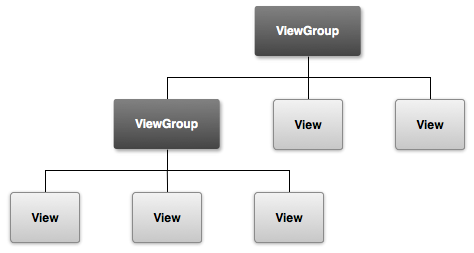
图 1. 视图层次结构的图示,它定义了一个 UI 布局。
要声明布局,您可以实例化代码中的 View 对象并开始构建树,但是定义布局最简单且最有效的方法是使用 XML
文件。如同 HTML 一样,XML
也为布局提供了一种用户可读结构。
视图的 XML 元素名称与其代表的 Android 类相对应。因此,
<TextView> 元素用于在 UI 中创建一个 TextView 小部件,而
<LinearLayout> 元素用于创建一个 LinearLayout
视图组。
例如,包含文本视图和按钮的简单垂直布局如下所示:
<?xml version="1.0" encoding="utf-8"?>
<LinearLayout xmlns:android="http://schemas.android.com/apk/res/android"
              android:layout_width="fill_parent"
              android:layout_height="fill_parent"
              android:orientation="vertical" >
    <TextView android:id="@+id/text"
              android:layout_width="wrap_content"
              android:layout_height="wrap_content"
              android:text="I am a TextView" />
    <Button android:id="@+id/button"
            android:layout_width="wrap_content"
            android:layout_height="wrap_content"
            android:text="I am a Button" />
</LinearLayout>
在应用中加载布局资源时,Android 会将布局的每个节点初始化为运行时对象,供您定义其他行为、查询对象状态或修改布局。
有关创建 UI 布局的完整指南,请参阅 XML 布局。
用户界面组件
您无需使用 View 和 ViewGroup 对象构建所有 UI。Android 提供了几个带有标准 UI 布局的应用组件,您只需定义内容。
这些 UI 组件均拥有一组唯一的 API,具体描述可参阅相应的文档,如添加应用栏、对话框和状态通知。
