Developers
The Google Play Developer Console is your home for publishing and managing your apps.

You can manage all phases of publishing on Google Play through the Developer Console. Using any web browser, you can upload apps, build product pages, set prices, configure distribution, and publish apps.
After you've registered and received verification by email, you can sign in to your Google Play Developer Console.
Latest Blog Posts
Publish with Confidence
The Developer Console provides rich testing features and staged rollouts that help you to provide apps that satisfy your users.
Firebase Test Lab
Firebase Test Lab for Android provides cloud-based infrastructure for testing Android apps. With one operation, you can initiate testing of your app across a wide variety of devices and device configurations. Test results—including logs, videos, and screenshots—are made available in your project in the Firebase console. Even if you haven't written any test code for your app, Test Lab can exercise your app automatically, looking for crashes.
Alpha and beta tests
Collect user feedback on early versions of your app with alpha and beta testing. Distribute your pre-release app to users as an open beta with a one-click, opt-in URL or as a closed beta using an email list, Google Group, or Google+ community. Users can provide feedback, while not affecting your app’s public reviews and rating. This valuable feedback helps you test features and improve the quality of your app. Learn more.

Staged rollouts
Discover and fix problems with a limited user base before making a wider release. With staged rollouts, you can release app updates progressively to an increasing portion of your users. You can fix problems before your app reaches the broader user community. Learn more.
Tip: If you find an issue during a rollout stage, you can halt the rollout, make the fix, and then resume.
Acquire Users
Using the Developer Console, you can configure targeted ads to present your app to more users. You can test variations of your Play Store listings and track user responses.
Promote your app with AdWords
Easily and conveniently buy AdWords app install ads. AdWords Universal App Campaigns appear across Search (including Play Search), YouTube, AdMob, and the Google Display Network. Set a budget and cost per acquisition, and Google takes care of the rest. Learn more.
Increase installs with improved store listings
With store listing experiments, you can test variations of your app's Play Store listing. You can try different combinations of images and text used to promote and describe your app on its Play Store listing. Collect data, choose the best combination, and make it visible on Google Play. Learn more.
Tip: You can reorder your screenshots and other images in different ways to determine the arrangement that best attracts users.

User acquisition performance report
Discover information about visitors to your Play Store listing, such as where they come from, how many go on to install your app, and how many buy your in-app products. You can also compare cohorts, examine acquisition channels, and see details of users and buyers. Learn more.

Learn about App Users and Performance
Using the Developer console, you can gain valuable insights about app performance. You can better understand user behavior and find out ways to optimize your app.
Player Analytics
Google Play game services offers a comprehensive dashboard of player and engagement statistics. With Player Analytics, discover more about the behavior of your game users, including how they play and how they buy. Also get help setting and monitoring revenue budgets. Learn more.

Detailed statistics and reports
Get a wide range of reports on the performance of your app and behavior of users such as installs, revenue, and crashes. Turn on email alerts to receive notifications of any sudden changes to important stats. Learn more.

Optimization tips
Automatic app scanning provides tips on ways to improve your apps—everything from updating old APIs to suggested languages for localization.
Manage Your App
Manage your APKs
Upload and manage your Android application packages (APK) to the Developer Console as drafts or to your Alpha, Beta, or Production channels. Learn more.
Tip: Ensure that users get the best possible experience for the smallest app downloads by creating multiple APKs with just the right content for hardware features such as screen size. For more information about using multiple APKs, see Maintaining Multiple APKs.
In-app products and subscriptions
Manage your in-app products and price them for local markets. Offer weekly, monthly, annual, or seasonal subscriptions. Attract new users with features such as grace periods and trials. Learn more.
Pricing and distribution
Control the price of your app for each country. Provide a price in your home currency, or link the price to an existing pricing template. Based on the price you enter or the prices from the template, the system autofills country-specific prices for different currencies with current exchange rates and local pricing patterns. Learn more.
Opt-in to distribute your app to different platforms such as Android Auto, Android TV, and Android Wear, as well as Designed for Families, Google Play for Work, and Google Play for Education.

Ratings and Reviews
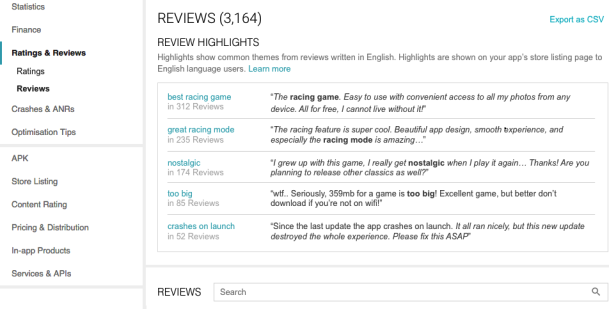
Understand and analyze your ratings and reviews over time and see a breakdown by country, language, Android version, and other device information. See common themes automatically generated from user reviews and reply to reviews to gather feedback, engage users, and find ways to improve your app and its rating.