
Create And Share Your Book Collections
Book Riot has a new feature: Collections! This is an easy way to keep track of Book Riot recommendations and organize your TBR using themed lists.

How to Use Collections, Book Riot’s New Feature
Book Riot has a new feature: Collections! This is an easy way to keep track of Book Riot recommendations and organize your TBR using themed lists. Here’s how to get started.
1. Sign up for All Access
Collections are a perk of All Access, Book Riot’s paid membership. With your membership, you’ll also get access to the complete Book Riot content archive and our curated book discovery tool, the New Release Index. Join All Access to get started with Collections!
2. Use the “Save to Collection” button
While browsing book lists on BookRiot.com, you’ll see “Save to Collection” buttons under book covers, like this one:
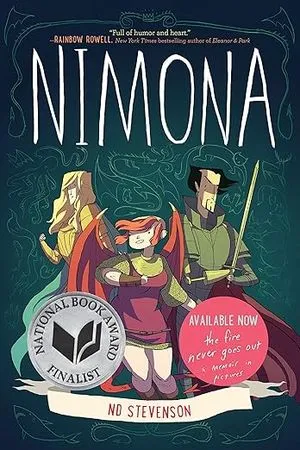
Nimona by N.D. Stevenson
In the 2010s, N.D. Stevenson posted doodles on Tumblr of a story he wasn’t sure what to do with, one about a shapeshifter with a penchant for villainy and a villain with a vendetta for a sidekick. Little did he know that those doodles would become a widely acclaimed webcomic, an Eisner Award and a Cybils Award-winning graphic novel, and an Academy Award-nominated film, all with a loyal and passionate fan base. Nimona is embraced as a classic of queer comics despite not being canonically queer, as Editor Danika Ellis explored last year. And if you needed any more reasons to be impressed by N.D. Stevenson, here’s your reminder that he would go on to be part of the team that gave us Lumberjanes. —Vanessa Diaz
Click the Save To Collection button, and once you’ve agreed to the code of conduct, you’ll be able to create a new collection.

From there, you can name your collection and add a description. You can also choose whether to have it be a private collection or one you can share using the “Visibility” toggle.
3. Curate your collections
Now, keep adding books to your collection and creating new collections! You can click “Remove from Collection” if you made a mistake, or hit the “Save to Collection” button again if you want to add that book to multiple collections.

By default, clicking “Save to Collection” will add that book to your most recent collection. If you’d like it to be added to a different collection instead, click “Change” in the button that pops up in the bottom left corner.
4. View all your collections
Click on “Account” in the top navigation bar to see all your collections, as well as your New Release Index watchlist.
5. Share your collections
If your collection is public, you can share it with your friends! Anyone can view a collection, but creating a collection requires an All Access membership.
To share your collection, view all your collections from your Account page, then click on the collection you want to share. Click the “Share this post” arrow to get options to share to Facebook, Threads, Reddit, and Bluesky.
You can also copy-and-paste the URL to share it.

6. Enjoy!
We hope you have fun curating your own collections! Not every Book Riot list has “Save to Collection” buttons available, but more are being added every day.
If you have any questions or encounter any problems, please contact us.
Be sure to also check out your other All Access perks, like the New Release Index! Not an All Access member yet? Join now!

