
SiteFort WordPress Security Plugin Documentation
Getting Started with SiteFort
SiteFort helps WordPress administrators reduce attack surface, detect malware, prioritize known vulnerabilities, block abusive traffic, protect logins, and keep an evidence trail of security activity from one admin area.
This guide follows the SiteFort admin menu and explains each feature in operational terms: what it does, when to use it, how to verify it, and how to troubleshoot it on a live WordPress site.
Production Safety Notes
Some SiteFort controls intentionally block traffic, disable endpoints, rewrite server rules, invalidate sessions, or force account recovery. Use these checks before changing settings on a live site.
- Confirm you can recover access. Keep a working administrator account, hosting control panel access, and database access available before enabling login URL changes, two-factor enforcement, or country allow-only mode.
- Take a backup before destructive actions. Back up files and database before using repair, delete, database prefix changes, salt regeneration, or User ID migration tools.
- Know your network path. If the site uses Cloudflare, a load balancer, reverse proxy, or managed host firewall, verify IP Detection before enabling strict firewall rules.
- Change one layer at a time. Enable a control, save it, verify the expected result, then continue. This makes rollback simple if something behaves unexpectedly.
- Keep evidence. For incidents, capture scan logs, Traffic Log filters, Audit Log entries, Diagnostics output, and Cloudflare status before clearing or resetting data.
Installation
- Download the SiteFort plugin ZIP file supplied with your account or purchase.
- In WordPress admin, open Plugins > Add New > Upload Plugin.
- Select the ZIP file, click Install Now, then click Activate Plugin.
- Open SiteFort in the WordPress admin sidebar.
sitefort folder to /wp-content/plugins/, then activate SiteFort from the WordPress Plugins screen.License Activation
The activation screen is titled Activate Protection. It supports three common activation paths: email verification, license key verification, and SiteFort Console connection.
| Activation path | Use it when | Steps |
|---|---|---|
| Email Verification | You want to connect a site on the Free plan or attach the site to the account associated with that email address. | Enter the email address, click Send Verification Code, enter the OTP, then click Verify & Connect. |
| License Key | You have a license key and want to activate the site directly from WordPress. | Enter the license key, request the verification code, enter the OTP, then click Verify OTP & Activate. |
| SiteFort Console | You manage sites centrally from the SiteFort Console. | Click Activate License via SiteFort Console, approve the website connection, accept the required terms confirmation, then complete Connect This Website. |
If activation fails, read the issue card before retrying. Common cards include Verification Code Invalid, Verification Code Expired, All Pro Seats Are In Use, Activation Temporarily Locked, No Pro Subscription Found, and Activation Action Required. Retrying repeatedly without fixing the reason can prolong a cooldown or keep the site on the wrong plan.
Setup Wizard
The Setup Wizard appears during first-run setup and can be reopened from the Dashboard. It is best for new installs because it walks through the same real settings used later in the plugin.
| Wizard step | What you configure | Do not continue until |
|---|---|---|
| Activate License | Connect the site to SiteFort Console so cloud scanning and vulnerability intelligence can work. | The license state is active or the chosen free connection is complete. |
| Hardening | Apply WordPress Obscurity, Server Hardening, Login Security, and Two-Factor controls. | You understand any login, REST API, XML-RPC, or file-writing impact. |
| Firewall | Enable firewall enforcement, configure traffic protection, and optionally connect Cloudflare. | IP Detection is verified and your administrator IP is trusted. |
| Security Scan | Run the first scan to detect malware, unauthorized changes, and known vulnerabilities. | The scan finishes or the failure panel explains what needs to be fixed. |
Wizard controls include Close setup wizard, Skip for now, Next, Next Step, Finish Setup, and Go to Scanner. The firewall step requires activation before the wizard will continue through that step.
Dashboard and Security Overview
The SiteFort Dashboard is titled Security Overview. Treat it as your daily command center: it tells you whether the site is protected, what requires attention, and where to go next.
The Dashboard links directly to Scanner, Hardening, Firewall, Login Security, Settings, and the Setup Wizard. Use Refresh after making changes in another tab or after completing a scan.
How to Read the Health Cards
| Card | What it means | What to do next |
|---|---|---|
| Website health | A high-level posture label. Context can include immediate remediation, priority remediation, baseline refinement, minor hardening opportunities, or aligned controls. | Use this card to decide whether the site needs immediate action or routine review. |
| Malware coverage | Shows Infected, Clean, or No Baseline. It can also show a detected malware file count. | If No Baseline appears, run a Standard Scan. If Infected appears, open Scanner and review every finding before deleting files. |
| Known vulnerabilities | Shows active vulnerability count or Secure. Severity context appears when issues exist. | Patch or remove Critical and High affected assets before routine low-risk updates. |
| Blocked requests | Shows firewall block volume in the last 90 days. | Open Traffic Log if the number spikes, legitimate visitors report blocks, or you need evidence for an incident report. |
Action Center
Action Center translates posture into tasks. When no action items exist, it shows All clear and confirms that security controls are configured.
| Action item | Meaning | Recommended response |
|---|---|---|
| Firewall protection is disabled | SiteFort is not filtering incoming traffic. | Open Firewall, verify IP Detection, add Trusted IPs, then enable the firewall. |
| Login security controls are inactive | Authentication endpoints are not protected by rate limiting or lockouts. | Open Login Security and enable Limit Login Attempts. Add CAPTCHA when bot attempts are frequent. |
| Scanner findings require review | Unresolved scan findings remain active. | Open Scanner, filter by Critical and High, review file paths and diffs, then repair, delete, ignore, or mark fixed based on evidence. |
| Active vulnerabilities detected | Known CVEs were found in installed assets. | Open Vulnerability Scanner. Update affected plugins/themes/core or remove abandoned components. |
| Server-level firewall conflict or inactive state | Pre-WordPress filtering is not active or another integration is blocking it. | Open Firewall Advanced, check Server-Level WAF status, and use manual rules or hosting support if server configuration is managed externally. |
Other Dashboard Widgets
Recent Security Events
Merges firewall and authentication activity. Filter by All Sources, Firewall, or Authentication. Use this widget when you need to understand what happened before opening the full Firewall Log or Audit Log.
Login Protection
Shows Active Lockouts, blocked login count over the last 30 days, and unlock actions for visible IP or user lockouts. If no active lockouts exist, the widget reports that login protection is working.
Bans Overview
Summarizes banned IPs, allowlisted entries, and ban sources. Use it to spot whether bans are coming from manual rules, scanner detection, community blocklist, rate limits, or login lockouts.
Threat Activity Trend
Shows blocked-request trend over the last 7 days. A sudden increase usually means a crawl, brute-force wave, exploit scan, or country-specific campaign is hitting the site.
Malware Scanner
The SiteFort Scanner checks the site for malware indicators, unauthorized file changes, exposed sensitive data, account and permission issues, database concerns, reputation problems, and known vulnerabilities. It is cloud-connected, so license state and scan credits can affect availability.
Before You Run a Scan
For a clean first run, confirm these items before clicking Start New Scan:
- License is active. Scanner banners such as License Required or License Validation Failed must be resolved before cloud scanning works.
- Scan credits are available. Free or non-paid plan usage appears in the control bar as Cloud Credits.
- Large generated folders are excluded. Exclude cache folders, backup archives, staging exports, or generated build directories only when you are sure they do not need security review.
- You have a backup before remediation. Scanning is safe; repair and delete actions change files or data.
Start or Stop a Scan
| Control | How to use it | Best practice |
|---|---|---|
| Start New Scan | Starts an on-demand scan when the site is connected and scanning is available. | Run this after installation, after a suspected compromise, after restoring from backup, or before handing a site back to a client. |
| Stop Scan | Stops the active scan. | Use only when the scan is affecting a busy production window or you intentionally need to change scan settings first. |
| Standard Scan | Uses signature and change intelligence for practical daily protection. | Use as the default scan mode for normal operations. |
| Deep Scan | Performs broader verification and content-level checks. | Use when malware is suspected, after a breach, or when Standard Scan findings suggest deeper inspection. |
| Daily at 3:00 AM | Displays the current schedule summary. | Schedule scans outside your site’s busiest traffic window. |
| Scanner Configuration | Opens scan scope, quarantine retention, intensity, and schedule settings. | Review after installing SiteFort on large ecommerce, LMS, or membership sites. |
Scan Progress
Scan progress appears as a staged stepper. Each stage can be pending, active, completed, stopped, or failed. The failed stage tells you where to start troubleshooting.
| Stage | What SiteFort is checking | Common reason to review logs |
|---|---|---|
| Server State | Configuration and environment readiness. | Server limits, file access, or configuration conditions prevent the scan from starting cleanly. |
| Deep Threat Analysis | Cloud-powered malware detection. | License, credits, connectivity, or file upload/analysis problems. |
| Reputation | Blocklist and reputation context. | The site or IP may appear on a reputation source or the lookup failed. |
| User & Accounts | Account permissions and risky user state. | Unexpected administrators, weak account posture, or suspicious user data. |
| Database Security | Database structure and content checks. | Suspicious options, injected content, or database access limitations. |
| Sensitive Data | Exposure checks. | Files or public paths may expose secrets, backups, logs, or configuration data. |
| Vulnerabilities | CVE check for WordPress assets. | Known vulnerable plugins, themes, or core versions require patching. |
Review Findings and Remediation Actions
Open the Findings panel after a scan. Start with Critical and High, then review Medium and Low findings. Do not bulk-delete files before you understand what they are.
1. Understand the finding
Check severity, file path, description, related setting, user or content context, and whether a diff is available. A file in uploads, a plugin directory, or the WordPress root means different things.
2. Choose the safest action
Use View file or View diff before remediation. Use Repair when SiteFort can restore a known-safe file. Use Delete only when the file is clearly malicious or backed up.
3. Keep exceptions intentional
Use Ignore only when the finding is verified and accepted. Ignored findings can be reviewed later with the Ignored filter and restored using Unignore.
4. Verify after cleanup
After repair, delete, update, password reset, or deactivation, run another scan and confirm the Dashboard no longer shows unresolved findings.
Available finding-level actions can include Refresh, View file, View diff, Open related settings, Edit content, Edit user, Update password, View users database, Ignore, Unignore, Mark fixed, Delete, Repair, Protect, Download, Delete user, Update, and Deactivate.
Bulk actions include Repair Files, Delete Files, and View Quarantine Vault. Empty states include No Ignored Issues, No [Severity] Severity Findings, System Secure, and No Issues on This Page.
Scanner Configuration
| Setting | What it controls | Practical guidance |
|---|---|---|
| Excluded Paths | Directories and files skipped during scans. One path per line; * works as a wildcard. | Use for cache/build folders that generate noise. Do not exclude uploads, plugins, themes, or root files just to make a scan look clean. |
| Quarantine Retention | Auto-purges quarantined files after 1 to 30 days. | Choose a retention period long enough for rollback and client review. Shorter retention reduces storage use. |
| Scan Intensity | Standard or Deep. | Standard is the daily baseline. Deep is for suspected compromise, pre-launch assurance, or post-cleanup validation. |
| Scan Frequency | Manual Only, Daily, Weekly, or Monthly. | Daily is useful for active production sites. Weekly may be enough for low-change brochure sites. Manual Only is not recommended for unattended sites. |
| Notifications | Alert recipients and delivery channels. | Send scan findings and scan failed alerts to the person who can actually take action. |
Scanner Troubleshooting
Start New Scan is disabled
- Read the disabled message under the button. It usually points to connection, availability, or on-demand scan access.
- Open Settings > License & Plan and confirm the site is active.
- If the page shows License Validation Failed, click Revalidate License and return to Scanner only after the banner clears.
- If the message mentions scan credits, use the upgrade/reset path shown in the banner instead of changing scan scope.
A scan failed, but protection is still active
- Open the failure panel. It can state that only this cloud scan run failed while protection remains active.
- Click View Scan Log and note the failed stage, timestamp, and message.
- Fix the stage-specific issue: license/credits for cloud stages, server configuration for Server State, connectivity for reputation or cloud analysis, or data access for database checks.
- Click Retry Scan after the underlying issue is resolved. Do not dismiss the panel until you have captured the message if you need support.
Findings keep coming back after cleanup
- Check whether the file is being regenerated by a compromised plugin, theme, scheduled task, or external deployment pipeline.
- Review Audit Log and hosting file modification logs around the time the file returns.
- Update or deactivate the component that owns the path. If the finding is in uploads, search for related PHP files or suspicious uploaded archives.
- Run a Deep Scan after cleanup and rotate administrator passwords when account compromise is possible.
Vulnerability Scanner
The Vulnerability Scanner monitors installed WordPress plugins, themes, and core for known CVEs and patch guidance. It is not a general update reminder; it highlights components with known security exposure.
Click Check Now to run an immediate check. If a License Required banner appears, activate the license before relying on vulnerability results.
| Area | What you see | How to use it |
|---|---|---|
| Summary cards | Critical / High, Total Vulnerabilities, and Affected Assets. | Use Critical / High to prioritize urgent work. Use Affected Assets to estimate change impact. |
| Asset groups | Component name, type, installed version, and issue count. | Review by component so you can update, replace, or remove one asset at a time. |
| Vulnerability table | Vulnerability, Affected, CVE, and Severity columns. | Expand a row for the description or CVE link when available. |
| Actions | Delete Theme, Update Plugin, Update Theme, or Take Action. | Use the action that matches the affected asset. Delete abandoned or unused themes/plugins instead of carrying risk. |
When no issues are present, the page shows No Vulnerabilities Found and explains that plugins and themes appear secure and up to date.
How to Respond to CVEs
- Patch first when a supported update exists. Update the affected plugin, theme, or WordPress core. Recheck afterward.
- Remove what you do not use. Inactive themes and plugins still represent code on disk. Delete unused vulnerable components.
- Replace abandoned software. If no update exists and the component is business-critical, plan a replacement and use Firewall/Hardening to reduce exposure until migration.
- Document exceptions. If a vulnerability cannot be fixed immediately, record severity, affected version, business owner, compensating control, and target fix date.
- Do not ignore Critical or High findings silently. The Dashboard will continue to surface active vulnerabilities because they affect site risk.
Firewall
The SiteFort Firewall filters abusive requests, scanner traffic, suspicious bots, blocked IPs, country policies, rate-limit violations, and selected user-agent rules. It also integrates with Cloudflare to push supported rules to the edge before requests reach WordPress.
The Firewall header shows detected IP context, Server-Level WAF status, Cloudflare status, and the master firewall toggle. Firewall states include Updating firewall…, Firewall is ON, Firewall is validating, Firewall is paused, and Firewall is OFF.
Activation
The Activation tab appears in the setup flow and includes Activate SiteFort Firewall, IP Detection, Server-Level WAF, Trusted IPs & Defaults, Cloudflare summary, and Save Activation Settings.
Verify IP Detection First
IP Detection tells SiteFort which request header contains the real visitor IP. This matters for every firewall decision, including bans, allowlists, country rules, rate limits, and lockout actions.
- Open Firewall > Advanced > IP Detection.
- Compare the detected IP with your current public IP or administrator network.
- If the site is behind Cloudflare, use the Cloudflare preset when prompted.
- If your host uses another proxy, choose the correct manual header and configure Trusted Proxy IPs/CIDRs.
- Click Verify again. Enable enforcement only after the warning state clears.
| Detection mode | Use when |
|---|---|
| Automatic (Recommended) | Most sites, including common CDN and hosting proxy setups, when SiteFort can detect the best source. |
| Manual (specify header) | Automatic gives the wrong result and you know the header your proxy or CDN sends. |
| Disabled (direct connection only) | The site receives traffic directly and no proxy/CDN sits in front of WordPress. |
Manual header options include CF-Connecting-IP, X-Forwarded-For, Forwarded, X-Real-IP, X-Client-IP, Client-IP, and X-Cluster-Client-IP. Status panels can report missing headers, wrong manual headers, Cloudflare detection, or setup checks. Actions include Auto-Configure, Verify again, Show diagnostic details, Apply Cloudflare preset, Switch to Automatic, and switching to a recommended header.
Protection
The Protection tab is where you control bot filtering, scanner detection, community threat feed, and rate limiting. Start with conservative settings, review logs, then tighten as needed.
| Protection | What it does | Recommended use |
|---|---|---|
| Bot & Crawler Policy | Filters bot traffic by profile. Google, Bing, social previews, and major AI assistants remain allowed at every level. | Use Balanced for most sites. Use Maximum only after reviewing business needs for unknown crawlers. |
| Basic profile | Blocks known hacking and vulnerability scanning tools. | Good starting point for cautious production rollouts. |
| Balanced profile | Blocks hacking tools, data scraping bots, and automated scripts. Marked recommended in the UI. | Recommended default for public production sites. |
| Maximum profile | Blocks hacking tools, scraping bots, automated scripts, and unrecognized bot traffic. | Use for high-risk sites that do not rely on niche crawlers, SEO tools, or third-party monitoring bots. |
| Detect & Block Scanners | Detects probes targeting config files, backups, version metadata, and sensitive paths. IPs over threshold are automatically banned. | Enable on production sites. Tune failed attempts and observation window if legitimate monitoring triggers it. |
| Community IP Blocklist | Blocks malicious IPs detected across the SiteFort network and refreshes every 6 hours. | Enable unless your environment requires every third-party threat source to be reviewed before enforcement. |
| Rate Limiting | Reduces abusive request spikes and repeated 404 probes without interrupting trusted search crawlers. | Enable for login-heavy, ecommerce, and public content sites. Review Traffic Log during the first week. |
Scanner detection settings include failed attempts per IP from 1 to 20 and an observation window from 1 to 60 minutes. Rate limiting settings include Site Requests from 10 to 300 and 404 Not Found Errors from 0 to 100.
Probe and Scanner Detection
Detect & Block Scanners catches reconnaissance before it becomes an exploit attempt. SiteFort blocks each matching sensitive-path request and escalates the source IP into the ban list after the configured threshold is reached inside the observation window.
| Detection area | Examples and operational meaning |
|---|---|
| Configuration probes | Requests for .env, .git, .htaccess, .user.ini, and similar paths indicate an automated scanner looking for exposed secrets or server files. |
| WordPress config backups | Requests for backup variants of wp-config.php are high-risk because they often expose database credentials. |
| Backup and dump discovery | Requests for SQL dumps, compressed archives, ZIP files, or tar archives suggest an attacker is searching for downloadable site backups. |
| Version and install metadata | Requests for readme.html, plugin/theme readme.txt, debug logs, error logs, phpinfo.php, and installer paths help attackers fingerprint the stack. |
| Threshold behavior | Each matching request is blocked. The IP is banned only after the failed-attempt count is reached within the observation window. |
| Evidence | Escalated events appear in Firewall Traffic Log as Sensitive Path activity, and the resulting IP block appears in Active Rules. |
Community Threat Feeds
Community IP Blocklist blocks traffic from malicious IPs detected across the SiteFort network and external threat intelligence sources. The UI shows blocked IP count, last synced timestamp, and Fetch Latest Threats.
- The list refreshes every 6 hours when enabled.
- Manual refresh is available from Fetch Latest Threats.
- If a refresh fails or returns no valid entries, SiteFort keeps the last known blocklist instead of silently removing protection.
- Blocks from this feature appear under the Community Blocklist filter in Traffic Log.
Traffic Rules
Traffic Rules lets you block or allow traffic by IP address, country, or crawler name. If Cloudflare Sync is enabled, the Rules screen can show a Synced to Cloudflare badge.
| Rule type | How to configure | Be careful with |
|---|---|---|
| IP Address | Enter an IP, CIDR, or wildcard. Choose Block or Allow, set duration, add a reason, then click Add Rule. Use Allow my current IP when securing your own access. | Allowed IPs bypass all firewall rules. Only allow trusted administrators, monitoring services, office/VPN ranges, or partners. |
| Country | Enable country blocking, choose Block selected countries or Allow only selected countries, select countries, and add them to the policy. | Allow-only mode blocks unknown countries and any country not selected. Use it only when the legitimate visitor countries are known and limited. |
| Bot / Crawler | Enter a User-Agent pattern. Choose Block for unwanted crawlers or Trust for crawlers that should bypass checks. | Trusted patterns bypass all firewall checks, including IP blocks, country rules, threat feeds, scanner detection, and rate limiting. |
Valid IP rules can use IPv4, IPv6, CIDR such as 10.0.0.0/24, or wildcard such as 192.168.1.*. Durations include Permanent, 1 day, 7 days, 30 days, and 90 days. Active Rules show metrics for Blocked IPs, Allowed IPs, Countries, and Bot Rules, plus filters for All, IPs, Countries, Bots, and Allowed.
Country Blocking and GeoIP
Country Blocking enforces geographic policy from the Firewall Rules screen. It supports two modes:
- Block selected countries: only the selected countries are blocked. Unknown countries are allowed because they are not proven to be in the blocked list.
- Allow only selected countries: only selected countries are allowed. Unknown countries are blocked.
| GeoIP source | How SiteFort uses it |
|---|---|
| Cloudflare country headers | When Cloudflare is connected and traffic arrives from a verified Cloudflare edge IP, SiteFort can use the trusted CF-IPCountry header. |
| Cloudflare edge rules | When Cloudflare Sync is enabled, supported country rules can be pushed to Cloudflare so blocked traffic is stopped before WordPress loads. |
| MaxMind GeoIP fallback | MaxMind GeoLite2-Country provides local origin-level lookups without runtime API calls. Configure it under Settings > Integrations and click Update Country Database. |
| No GeoIP source | Country blocking cannot be enabled until Cloudflare edge enforcement or a downloaded MaxMind country database is available. |
| Administrator access | Logged-in administrators are exempt from origin-level country checks. Cloudflare edge rules still apply before WordPress loads. |
Cloudflare Sync
Cloudflare Sync pushes supported SiteFort firewall rules to Cloudflare before requests reach your server. Use it when the domain is routed through Cloudflare and you want edge-level enforcement for high-volume blocking.
| Cloudflare status or feature | Meaning |
|---|---|
| Connect Cloudflare | Cloudflare credentials are not configured. Open Settings > Integrations and add Zone ID plus credentials. |
| Cloudflare Connected | SiteFort verified the zone and required permissions. |
| Cloudflare Connection Issue | Credentials are saved, but SiteFort could not verify a working connection for this website. |
| Block at the edge | Blocked IPs and countries are stopped at Cloudflare’s global network before reaching your server. |
| 300+ global locations | Cloudflare enforces rules from the nearest data center to the attacker, reducing origin load. |
| Live attack escalation | IPs that repeatedly trigger firewall blocks are temporarily escalated to Cloudflare edge blocks. |
When sync is enabled, rule changes push automatically and Push now forces an immediate sync. Status can show plan badge, processing state, Cloudflare limits, last push time, completed-with-warning messages, conflicting targets, and plan limit warnings.
Automatic Edge Blocks for Active Attacks uses four fields: Block Threshold from 2 to 50, Observation Window from 1 to 1440 minutes, Edge Block Duration from 5 to 10080 minutes, and Max Edge Blocks capped by the detected Cloudflare plan. These temporary blocks are managed separately from the manual block list.
Cloudflare Integration Guide
Use this guide to connect Cloudflare to SiteFort for edge firewall enforcement, country blocking, manual IP rules, manual user-agent rules, and automatic temporary edge blocks during active attacks. Edge enforcement works only for traffic routed through Cloudflare, so make sure the site’s DNS records are proxied when you expect Cloudflare to block traffic before it reaches WordPress.
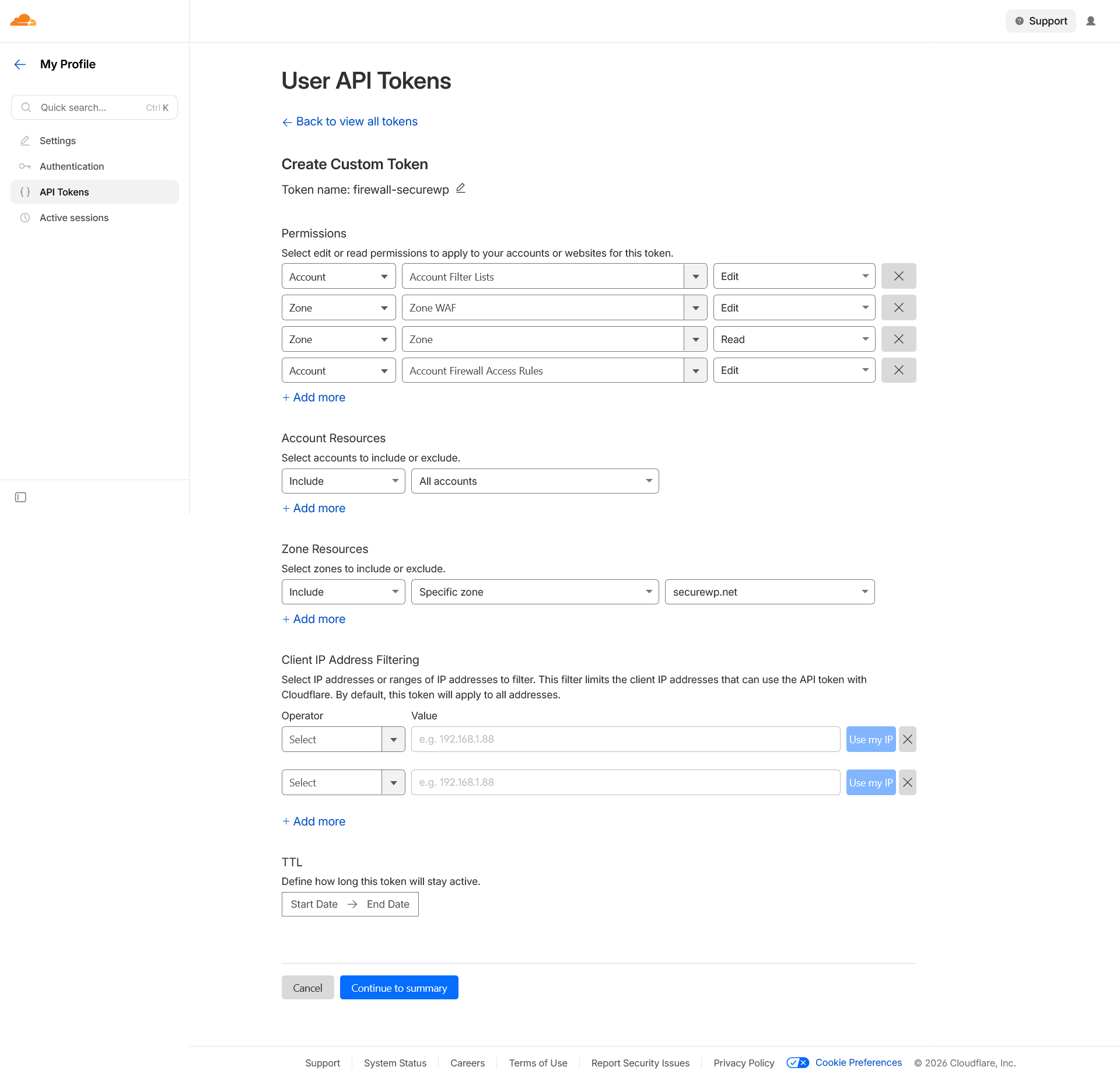
Step 1: Copy the Cloudflare Zone ID
- Log in to Cloudflare.
- Open the website zone you want SiteFort to manage.
- Go to Website > Overview.
- Copy the Zone ID from the API panel.
The Zone ID tells SiteFort exactly which Cloudflare zone should receive firewall rules. Do not use an Account ID in this field.
Step 2: Create a scoped API Token
Use API Token (Recommended) where possible. Paste only the token value into SiteFort. Do not include Authorization:, Bearer, spaces, Token ID, or a Global API Key in the API Token field.
| Permission | Required | Purpose |
|---|---|---|
| Zone – Zone – Read | Yes | Validate the selected zone and discover the owning Cloudflare account. |
| Account – Filter Lists – Edit | Yes | Create and update SiteFort-managed edge allow and block lists. |
| Zone – WAF – Edit | Yes | Create and update the SiteFort managed custom firewall rule. |
| Account – Firewall Access Rules – Edit | Optional | Allow fallback access-rule support if Cloudflare Lists are unavailable on the account or plan. |
Set Zone Resources to include the website zone and Account Resources to include the account that owns that zone. If a required permission is missing, SiteFort shows Permission Required or Required Scopes Missing in the Cloudflare status cards.
Step 3: Save and verify in SiteFort
- Open SiteFort > Settings > Integrations > Cloudflare Connection.
- Select API Token (Recommended).
- Paste the Zone ID and API Token value.
- Click Save & Verify.
- Confirm the status cards: Connection, Account ID, Permission Check, and Detected Plan.
Step 4: Enable Cloudflare Sync
- Open Firewall > Cloudflare Sync.
- Enable Cloudflare Sync.
- Review the limits and plan badge.
- Click Push now if you want an immediate sync instead of waiting for the next automatic push.
| Synced item | Cloudflare behavior |
|---|---|
| Manual IP and CIDR rules | Blocked and allowed IP entries are pushed to Cloudflare lists or fallback access rules when supported. Wildcard IP patterns are enforced locally and may be skipped during edge sync. |
| Country rules | Country policies can be enforced at Cloudflare before requests reach WordPress, subject to Cloudflare plan and rule limits. |
| Manual user-agent rules | Manual user-agent block and trust patterns are included in the synced rule set when Cloudflare Sync is enabled. Built-in bot classifications remain origin-level controls. |
| Automatic edge blocks | IPs that repeatedly trigger firewall blocks can be escalated to temporary Cloudflare edge blocks managed separately from the manual block list. |
Step 5: Troubleshoot Cloudflare status
| Status or warning | What to check |
|---|---|
| Not Configured | Confirm the Zone ID and credential are saved in Settings > Integrations. |
| Permission Required | Add the missing required token scopes in Cloudflare, then use Save & Verify or Re-verify Credentials. |
| Verification Failed | Check the Zone ID, token value, account access, and Cloudflare API availability. |
| Limited fallback support | Required permissions passed, but the optional fallback permission is missing. Managed lists and WAF rules can still be available. |
| Plan limit warnings | Reduce synced entries or adjust rule strategy when the detected Cloudflare plan cannot hold every requested edge rule. |
| Conflicting targets | Remove or update opposite-action rules already present in Cloudflare, then push again. |
Advanced Firewall Settings
Trusted Proxy Configuration
Trusted Proxy Configuration ensures proxy headers are trusted only when the direct connection comes from a known proxy server. This prevents attackers from spoofing headers such as X-Forwarded-For. Provider options are None, Cloudflare with auto-updated ranges, and Custom IPs/CIDRs.
Server-Level WAF
Server-Level WAF intercepts malicious requests at the server level before WordPress loads, so blocks and rate limits take effect earlier in the request lifecycle. States can include checking availability, not installed, active at the web server layer, installed while runtime activation is being verified, pending activation, another server-level firewall conflict, stale runtime state, and current startup file.
If automatic file writing is disabled or server configuration is managed by your host, use generated manual rules or involve hosting support. Then click Check again.
Trusted IPs & Defaults
- Trusted IPs: one IP address, CIDR range, or wildcard per line. Trusted entries bypass all firewall rules.
- Block Page Message: message shown to visitors whose requests are blocked by the firewall.
- Default Block Duration: used for manually added IP blocks unless a rule overrides it.
- Add my current IP: useful before enabling strict controls from a new network.
Firewall Traffic Log
Firewall Traffic Log is the first place to look when a visitor reports a block or when traffic suddenly spikes. Filter by attack type, search by IP, select a time range, export CSV, refresh, and page through results.
Available type filters are All Types, IP Ban, Rate Limit, 404 Flood, XML-RPC, Sensitive Path, Community Blocklist, Country Block, UA Ban, Bot Ban, Login Lockout, and REST API Block. Time ranges include 24h, 7d, 30d, and All.
Hardening
Hardening reduces the number of ways attackers can fingerprint, access, or abuse WordPress. SiteFort organizes these controls into WordPress Obscurity, Server Hardening, Login Security, Two-Factor Authentication, and Security Headers.
WordPress Obscurity
These settings reduce fingerprinting and account discovery. They are usually safe to enable, but REST API restrictions can affect headless frontends, mobile apps, blocks, forms, and integrations.
| Setting | What it does | Check before enabling |
|---|---|---|
| Hide WordPress Version | Removes version numbers from meta tags, RSS feeds, and script query strings. | Safe for most sites. |
| Clean WordPress Head | Removes unnecessary meta tags, manifest links, and feed discovery links from the HTML head. | Confirm no theme feature relies on a removed discovery link. |
| Prevent Username in Author Slug | Prevents author archive slugs from exposing login usernames and repairs existing matching slugs. | Check author archive URLs on publisher sites. |
| Block User Enumeration | Blocks author scanning, REST API user endpoints, oEmbed data, and user sitemaps. | Safe for most sites. Confirm author data is not required by a public app. |
| Disable Theme & Plugin Editor | Removes the built-in code editor from Appearance and Plugins menus. | Recommended for production. Use Git, SFTP, or deployment pipeline for code changes. |
| Disable Application Passwords | Removes Application Passwords, which bypass two-factor authentication. | Do not enable if mobile apps, external publishing tools, or API clients rely on application passwords. |
| Restrict REST API Access | Requires authentication for REST endpoints. Core data endpoints require appropriate capabilities and unknown endpoints are blocked for unauthenticated visitors. | Open Endpoint Status and allow public endpoints required by your theme, forms, commerce, headless frontend, or integrations. |
Endpoint Status shows Endpoint, Status, and Action columns. Status badges include Core Protected, capability names, Core Permissions, Public Allowed, Login Required, and Unrestricted. Actions include Allow Public and Restrict.
Server Hardening
Server hardening prevents direct access to files and directories that should not be browsed or executed. These rules are strongest when written to the web server configuration, because requests can be blocked before WordPress loads.
| Setting | Why it matters | Verification |
|---|---|---|
| Disable Directory Listing | Prevents visitors from browsing folder contents when no index file exists. | Open a directory path without an index file and confirm it is not listed publicly. |
| Block PHP Execution in Uploads | Stops web shells from executing PHP directly inside uploads. | Confirm legitimate media still loads. WordPress should not need to execute PHP from uploads. |
| Block Direct PHP Access in Plugins | Prevents individual plugin PHP files from being executed directly by URL. | Verify plugin functionality that uses WordPress routing still works. |
| Block Direct PHP Access in Themes | Prevents theme PHP files from being executed directly by URL. | Check key templates and frontend pages after enabling. |
| Block Sensitive File Access | Blocks dotfiles, debug files, lock files, version-control metadata, sample config files, and server config fragments. | Test a safe blocked path such as a known readme or sample file if available. |
| XML-RPC | Choose Fully Enabled, Disable Pingbacks Only, or Fully Disabled. | Disable pingbacks for most sites. Fully disable only if Jetpack, mobile app, or XML-RPC clients are not required. |
Manual Configuration Rules provides Server Config Rules and wp-config.php Rules, with actions to show/hide rules, regenerate, copy, verify enforcement, open manual rules, or open advanced settings. Use this when Write to Files is disabled or server configuration is managed outside WordPress.
Login Security
Custom Login URL
Custom Login URL replaces the default WordPress login URL with a custom path. Standard login endpoints are disabled and return an error or redirect based on your setting.
- Choose a login slug that is memorable to administrators but not obvious to bots.
- Choose a register slug if public registration is enabled.
- Copy and store the new login URL before saving.
- Choose the default
wp-login.phpresponse: 403, 404, or Redirect. - If using Redirect, confirm the redirect target does not reveal the new login path.
Login Form Protection
| Setting | What it does | Recommended starting point |
|---|---|---|
| Limit Login Attempts | Locks out IPs and users after repeated failed login attempts. | Start with moderate thresholds, then tune from Lockouts & Recovery. |
| Bot Detection (CAPTCHA) | Requires CAPTCHA verification on the login form. | Enable when brute force or bot attempts continue after lockouts, or when compliance policy requires it. |
| Restrict Login Identifier | Allows email only, username only, or both based on policy. | Email Address Only is recommended when user email addresses are managed and unique. |
| Block Default Admin Username Logins | Rejects authentication attempts using the default admin username. | Enable unless a real account still uses that username; rename that account first. |
| Obfuscate Login Error Messages | Uses a generic failure response instead of revealing whether username or password was wrong. | Enable on production sites. |
Limit Login Attempts supports failed attempts per IP from 1 to 20, failed attempts per user from 1 to 20, detection windows of 5 min, 15 min, 30 min, 1 hour, and 24 hours, and lockout durations of 5 min, 15 min, 30 min, 1 hour, and 24 hours.
Password Policies
Password policies decide what happens when a user reaches the login flow or changes credentials. Apply stronger policy to privileged roles first.
| Policy | What it does | Recommended use |
|---|---|---|
| Breached Password Detection | Blocks known breached passwords and triggers mandatory reset when existing credentials appear in global leaks. | Enable for all users when possible. |
| Enforce Strong Passwords | Rejects weak passwords and requires reset when existing password no longer meets policy. | Enable for privileged users at minimum. |
| Prevent Password Reuse | Blocks users from reusing their current password after a reset or voluntary change. | Useful for regulated sites and administrator accounts. |
| Require Password Change on Role Promotion | Requires a new password when a user is promoted to Administrator or Editor. | Recommended for all production sites. |
| Password Expiration Policy | Requires rotation after 1 to 365 days. | Use only where policy requires periodic rotation; avoid unnecessary rotation for normal users. |
Lockouts & Recovery
Lockouts & Recovery shows active lockouts from failed login attempts and recent authentication activity. It is the recovery panel when a legitimate user is blocked by login protection.
| Control or state | What it means | How to use it |
|---|---|---|
| Active Lockouts / No Active Lockouts | Whether an IP or user is currently locked out. | Use Unlock for a specific false positive or Unlock All during a broad misconfiguration. |
| Protection Active / Disabled | Whether login attempt limiting is enforcing lockouts. | If disabled, historical activity can still appear but new lockouts are not enforced. |
| Block in Firewall | Converts abusive login activity into a firewall block. | Use for clearly malicious IPs that keep returning. |
| Trust (Allowlist) | Adds a source to allowlist/trusted handling. | Use only for stable office/VPN/monitoring IPs that you control. |
| Recent Authentication Activity | Shows event, IP, and time. | Use to confirm whether a complaint is a real lockout, a wrong password, or another login control. |
Two-Factor Authentication
Two-Factor Authentication protects WordPress accounts with a second verification step. SiteFort includes 2FA Enforcement for policy and My 2FA for the current user’s setup.
| Area | What users do | Operational guidance |
|---|---|---|
| Your 2FA Status | Review current method, recovery code count, setup action, regeneration, or disable action. | Administrators should keep recovery codes offline before enforcement begins. |
| Authenticator App | Scan QR code or use manual secret in Google Authenticator, Authy, 1Password, or compatible app. | Best default for administrators and editors. |
| Email Code | Receive a one-time code by email during login. | Useful fallback when app rollout is not practical, but depends on email delivery. |
| Recovery Codes | Save generated codes. Regeneration replaces previous codes. | Store securely. Each code can be used once. |
| 2FA Policy Settings | Enable 2FA, choose allowed methods, enforce by role, set remember-device duration, and set grace period. | Start with Administrator and Editor roles, then expand if needed. |
Allowed methods are Authenticator App (TOTP) and Email Code. The UI prevents removing the last allowed method. Roles include Administrator, Editor, Author, Contributor, and Subscriber. Remember Device Duration supports 0 to 365 days, and Grace Period supports 0 to 30 days.
Security Headers
Security Headers configures browser-level protections. Start with analysis, review recommendations, deploy low-risk headers, then carefully test Content-Security-Policy and HSTS.
- Click Analyze Your Security Headers.
- Review Deployment recommendation, Recommendations, Read-Only Warnings, and Deployed Headers.
- Use Enable / Fix, Configure, or Edit for each header.
- Click Refresh Preview or Re-scan after changes.
| Header | Purpose | Deployment guidance |
|---|---|---|
| Content-Security-Policy | Restricts external resources the browser may load, mitigating XSS and data injection. | Start in Report Only. Move to Enforce after scripts, styles, images, fonts, connections, frames, forms, and embedded content are validated. |
| Strict-Transport-Security | Enforces HTTPS-only connections. | Enable only after HTTPS works reliably. Include subdomains and preload only when every subdomain is HTTPS-ready. |
| X-Content-Type-Options | Prevents MIME sniffing and content-type confusion. | Usually safe to enable. |
| X-Frame-Options | Prevents clickjacking by controlling iframe embedding. | Use SAMEORIGIN unless the site should never be framed; use DENY carefully. |
| Referrer-Policy | Controls how much URL information is shared when users navigate away. | strict-origin-when-cross-origin is the recommended balance. |
| Permissions-Policy | Restricts browser APIs such as camera, microphone, geolocation, payment, USB, fullscreen, and autoplay. | Disable features the site does not use. Use Self Only for features needed by your domain. |
Disclosure header warnings include X-Powered-By, Server, and X-Generator. CSP source tokens include Self, Inline, Eval, HTTPS, Data, Blob, and None where applicable. CSP also supports custom domains and Skip CSP on Admin Pages, which is recommended because WordPress admin relies heavily on inline scripts.
Referrer-Policy Options
Available policies include strict-origin-when-cross-origin, no-referrer, no-referrer-when-downgrade, origin, origin-when-cross-origin, same-origin, strict-origin, and unsafe-url. Avoid unsafe-url on production sites because it sends full paths and query strings.
Settings
SiteFort Settings are organized into Scanner, Notifications, Integrations, License & Plan, and Advanced. Use Settings for policies that affect multiple modules or external services.
Scanner Settings
The Scanner settings tab contains the same Scan Scope and Automated Scans controls documented under Scanner Configuration. Use this tab when you want to change scan policy without opening the Scanner slide-over.
Email Notifications
Email Notifications controls all email alerts sent by SiteFort from this site. Enter comma-separated email addresses, or leave the field blank to use the WordPress admin email. You can also send the same notifications to selected WordPress administrators.
| Notification group | Events | Recommended recipient |
|---|---|---|
| Scans & Vulnerabilities | Scan Findings, New Vulnerability Found, and Scan Failed. | Technical owner, agency support queue, or security mailbox. |
| Firewall & Login Protection | Firewall Block Summary and Login Lockout. | Site administrator or operations channel. Use digest schedule to reduce noise. |
| Account Activity | SiteFort Deactivated, Sensitive Tool Used, Two-Factor Authentication Change, and Administrator Sign-In. | Security owner or account owner. These events can indicate unauthorized changes. |
Severity threshold options are All Severities, Low and above, Medium and above, High and above, and Critical only. Firewall Block Summary supports Daily, Weekly, and Monthly digest schedules.
Webhook Delivery
Webhook Delivery sends alerts to Slack, Discord, or a custom HTTP endpoint in addition to email. Use it when alerts should reach a team channel, ticketing workflow, or SIEM-style collector.
| Provider | How it works | Setup note |
|---|---|---|
| Slack | Delivers formatted alerts to a Slack channel. | Create an Incoming Webhook in the Slack workspace under Settings -> Apps. |
| Discord | Delivers color-coded alerts to a Discord channel. | Create a webhook in Discord under Channel Settings -> Integrations -> Webhooks. |
| Generic JSON | Delivers a signed JSON payload to a custom HTTP endpoint. | Verify each delivery using the HMAC-SHA256 signature header. |
Provider states include Active, Saved, and Not set up. Actions include Use this provider, Discard, Send test, and Save URL.
Integrations
Cloudflare Connection
Add your Cloudflare Zone ID and credentials in Settings > Integrations. SiteFort verifies the connection, discovers the Account ID, checks token permissions, and detects the Cloudflare plan before edge protection is enabled. Authentication methods are API Token (Recommended) and Global API Key.
Status cards show Connection, Account ID, Permission Check, and Detected Plan. Actions include Save & Verify, Re-verify Credentials, and setup guide links when permissions need attention. See the Cloudflare Integration Guide for the illustrated setup flow and required token scopes.
MaxMind GeoIP
MaxMind GeoIP is used for origin-level country blocking when Cloudflare edge headers are unavailable or when requests reach WordPress without a trusted Cloudflare country header. Enter Account ID and License Key, check Credentials and Database status, use Test country lookup when available, then click Save or Update Country Database.
CAPTCHA / Bot Detection
Configure CAPTCHA keys here, then enable protection in Hardening > Login Security. Providers include Google reCAPTCHA v2 Checkbox, Google reCAPTCHA v2 Invisible, Google reCAPTCHA v3 Invisible, and Cloudflare Turnstile. reCAPTCHA v3 includes a Score Threshold slider from 0.1 to 1.0. Lower is more permissive; higher is stricter. The UI recommends 0.5.
Secret keys are stored securely. Select the secret field only when replacing it; leave it blank and save to keep the current secret key unchanged.
License & Plan
The License & Plan tab displays license state, plugin version, plan label, expiry when available, revalidation actions, activation flows, and license deactivation. Plan labels visible in the UI include SiteFort Managed, SiteFort Pro, and SiteFort Free.
Free plan text explains that the site is connected on the Free plan and that upgraded subscriptions can be applied with Activate Pro. Paid plan text states that the site is protected with advanced cloud firewall, real-time malware signatures, and audit logging. Active sites can Activate Pro, Revalidate License, or Deactivate License after confirmation.
Advanced Settings
| Section | Settings | Guidance |
|---|---|---|
| Server Configuration | Server Type, Nginx Config File, and Write to Files. | Automatic detection works for most sites. Disable Write to Files when server config is managed externally. |
| Data Configuration | Audit Logging, Log Storage, Log Level, Database Log Retention, and File Log Retention. | Use Standard log level for production unless you need every routine event. Choose retention based on audit and storage requirements. |
| Danger Zone | Reset Plugin Data. | This permanently erases plugin settings, scan history, and cached data. The license connection must be reactivated. |
Tools
The Tools page provides advanced security and configuration utilities. Many tools intentionally change authentication, database, encryption, or configuration state. SiteFort requires explicit confirmation for sensitive actions.
| Tool | What it does | Before you run it |
|---|---|---|
| Regenerate Security Salts | Replaces WordPress authentication constants in wp-config.php, invalidating every active session. | Warn administrators and expect all users to sign in again. |
| Rotate Encryption Key | Generates a new encryption key and re-encrypts stored secrets, including API tokens, cloud credentials, and 2FA data. | Back up the site and run during a maintenance window. |
| Change Database Table Prefix | Renames WordPress database tables to use a non-default prefix. | Take a full database backup. Confirm the new prefix starts with a letter or underscore, contains only letters/numbers/underscores, and ends with an underscore. |
| Change User ID 1 | Reassigns the primary administrator account from default User ID 1 to a randomized value. | Expect forced logout. Confirm the administrator can sign in afterward. |
| File Permissions Audit | Reviews permissions across WordPress core, plugins, themes, uploads, SiteFort data, mu-plugins, wp-config, and server configuration. | Run after migration, cleanup, or hosting change. Review overly permissive paths. |
| Manual Configuration Rules | Generates wp-config.php constants and server rules for manual deployment when automatic writing is disabled. | Use for managed Nginx, locked-down hosting, or externally managed server configuration. |
| Configuration Transfer | Exports settings JSON or imports selected JSON. Secrets and API credentials are stripped from exports. | Use for staging-to-production policy transfer, then reconnect integrations and secrets manually. |
| Diagnostics | Reviews environment, configuration, and connectivity health. | Run before contacting support or after a confusing firewall/scanner/integration state. |
Audit Log
The Audit Log tracks user activity and system events. Use it to understand who changed a setting, when a lockout occurred, whether a sensitive tool was used, or whether plugin/theme/core activity preceded an incident.
If audit logging is disabled, the page shows Audit Logging is Disabled and provides Enable Audit Logging plus a link to Settings > Advanced. Enable it before you need evidence.
| Area | Details | How to use it |
|---|---|---|
| Summary cards | Total events, Warnings, Critical, and Unique users. | Use to estimate activity volume and urgency. |
| Filters | All, Info, Warning, Critical, and search by event, user, or IP. | Filter before exporting or clearing to avoid losing context. |
| Event table | Event, User, Date & Time, Category, and IP Address. | Use for incident reconstruction and compliance review. |
| Header actions | Export CSV, Clear All, and Refresh. | Export before Clear All. CSV export protects fields from spreadsheet formula execution. |
| Event types | Authentication, password, user management, plugin, theme, core, hardening, site setting, lockout, audit clear, and default event details. | Correlate with Scanner findings and Traffic Log events. |
Network Security
Network Security manages network-wide enforcement and propagates main-site firewall and hardening templates across a WordPress multisite network. Use it when individual subsite settings should not override central security policy.
| Section | Purpose | Guidance |
|---|---|---|
| Sites | Shows visible network sites loaded from the multisite registry. | Use as a quick count and visibility check. |
| Firewall Enforcement | Shows whether site-level firewall settings are overridden by network policy checks. | Enable when every subsite must honor shared firewall rules. |
| Network Lockout | Shows whether blocked visitor IPs are rejected consistently across the whole network. | Enable when attackers should not pivot from one subsite to another. |
| Network Policy | Enforce Firewall Network-Wide, Enforce Hardening Network-Wide, Enable Network Lockout, and Save Network Policy. | Change during a planned window if subsites have different business requirements. |
| Template Propagation | Propagate Firewall, Propagate Hardening, or Propagate Both from the main-site template. | Review main-site policy first; propagation can affect every site. |
| Site Inventory | Shows the first 100 sites with Site, Domain, Path, and Registered columns. | Use to verify coverage and spot sites that require manual review. |
SiteFort Troubleshooting for Real WordPress Sites
This section is for moments when something is not working: a scan will not start, a legitimate user is blocked, Cloudflare will not sync, a header broke the frontend, or a setting did not apply. Start with the symptom, confirm the layer that owns it, apply the smallest safe fix, and verify the result.
First Question: What Changed Last?
Before changing more settings, identify the last change. Most SiteFort issues trace back to one of five layers:
| Layer | Typical symptom | Where to look first |
|---|---|---|
| License or cloud connection | Scanner or Vulnerability Scanner unavailable, license banners, credits exhausted, failed cloud scan. | Settings > License & Plan, Scanner banner, scan failure panel, scan log. |
| CDN/proxy/IP detection | Wrong IP blocked, firewall paused, Cloudflare prompt, country rules inaccurate. | Firewall > Advanced > IP Detection and diagnostic details. |
| Firewall policy | Visitor receives block page, crawler blocked, country access issue, Traffic Log entries. | Firewall > Traffic Log, Active Rules, Country policy, Bot rules, Trusted IPs. |
| Hardening or headers | REST API broken, login URL inaccessible, CSS/JS broken, iframe blocked, HTTPS/header issue. | Hardening tab that was changed, Security Headers analysis, Manual Configuration Rules. |
| Account/login controls | User cannot log in, CAPTCHA missing, 2FA problem, lockout, password reset loop. | Hardening > Login Security, Lockouts & Recovery, Two-Factor, Audit Log. |
Emergency Playbooks
Legitimate visitors are seeing a SiteFort block page
- Ask for the visitor IP, approximate time, country, URL, and screenshot of the block page.
- Open Firewall > Traffic Log. Search the IP and use the relevant time range.
- Check Protection Type: IP Ban, Country Block, Rate Limit, 404 Flood, UA Ban, Bot Ban, Community Blocklist, REST API Block, or Login Lockout.
- If the block is legitimate but too strict, adjust the owning rule. Example: remove the country from allow-only policy, reduce Maximum bot policy, or increase rate limits.
- If the visitor is trusted, add a narrow allow rule or Trusted IP. Prefer a stable office/VPN IP over a broad wildcard.
- Ask the visitor to retry and confirm the Traffic Log no longer records a block.
An administrator cannot log in
- Check whether the user is using the correct custom login URL. If Custom Login URL was recently enabled, use the copied secure URL.
- Open Hardening > Login Security > Lockouts & Recovery from another administrator account. Unlock the IP or user if active.
- If CAPTCHA fails or is missing, open Settings > Integrations > CAPTCHA / Bot Detection and confirm provider keys are saved. Temporarily disable CAPTCHA if the provider is misconfigured.
- If 2FA is the issue, use recovery codes, email code, or authenticator method. Confirm at least one allowed 2FA method remains enabled before enforcing roles.
- If the user is blocked by country or IP policy, check Firewall Traffic Log and trusted IP rules.
- After access is restored, review Audit Log for repeated failed attempts and adjust thresholds only if false positives continue.
The site appears broken after enabling Security Headers
- Open the affected page in a browser and identify what broke: styles, scripts, fonts, images, embeds, AJAX, forms, checkout, iframe, or media.
- In SiteFort, open Hardening > Security Headers and review the Header Preview and CSP configuration.
- If Content-Security-Policy is in Enforce mode, switch to Report Only while you add required sources.
- Add only the specific domains needed for Scripts, Stylesheets, Images, Fonts, Connections, Frames, Frame Ancestors, Base URI, or Form Action.
- If the issue is in wp-admin, enable Skip CSP on Admin Pages.
- Re-scan headers and test the public page, admin page, checkout, login, and forms before returning CSP to Enforce mode.
Cloudflare Sync says connected but rules are not behaving as expected
- Confirm the affected DNS record is proxied in Cloudflare. Edge rules cannot block traffic that bypasses Cloudflare.
- Open Settings > Integrations > Cloudflare Connection. Check Connection, Account ID, Permission Check, and Detected Plan.
- If permissions are missing, update the token scopes and click Re-verify Credentials.
- Open Firewall > Cloudflare Sync. Check last pushed, plan limits, warning text, and conflicting targets.
- Click Push now. If there are plan limit warnings, reduce synced entries or move less important blocks to origin-only enforcement.
- Check whether the rule type is eligible for edge sync. Wildcard IP patterns may be enforced locally and skipped during Cloudflare sync.
A scan reports malware or suspicious files
- Do not delete files immediately. Open the finding, review severity, file path, and diff if available.
- Take a backup before remediation. If the site is actively compromised, preserve a copy for investigation before cleanup.
- Use Repair for known core/plugin/theme files when SiteFort offers it. Use Delete only for clearly malicious or unnecessary files.
- Update or deactivate the component that owns the infected path.
- Rotate administrator passwords and review unexpected admin users when account compromise is possible.
- Run a Deep Scan after remediation and verify the Dashboard no longer shows unresolved malware findings.
Module-by-Module Fixes
| Symptom | Likely cause | Fix |
|---|---|---|
| License activation code fails | Invalid or expired OTP, wrong email/license key, used Pro seats, or activation cooldown. | Read the issue card. Request a new code when expired, free a Pro seat in Console when seats are used, or wait for cooldown to expire. |
| Scanner says License Required | The site is not connected to SiteFort Console. | Activate in Settings > License & Plan, then return to Scanner after the banner clears. |
| Scan Credits Exhausted | Cloud scan quota for the billing period has been used. | Use the upgrade path or wait for the reset period shown. Do not exclude important paths to work around quota. |
| Vulnerability Scanner shows no data | License is required, check has not run, or scan is in progress. | Activate license if prompted, click Check Now, and review Last check timestamp after completion. |
| Firewall is paused or validating | IP Detection has not been verified. | Open Firewall > Advanced > IP Detection, apply Cloudflare preset or correct proxy header, then Verify again. |
| Your own IP is blocked | Manual IP rule, country rule, bot rule, rate limit, or login lockout caught your request. | Use another administrator session or hosting access to remove the rule, unlock the lockout, or add your stable admin IP to Trusted IPs. |
| Country blocking blocks real users | Allow-only policy is incomplete, GeoIP source is missing/incorrect, or Cloudflare edge rule applies before WordPress. | Add required countries, switch to block-selected mode, verify MaxMind/Cloudflare country source, and push Cloudflare changes if sync is enabled. |
| Trusted crawler still blocked | User-Agent pattern is too broad/narrow, Cloudflare has a conflicting rule, or crawler IP is not what you expected. | Review Traffic Log User Agent, add a specific Trust pattern, remove conflicting Cloudflare rule, and avoid broad patterns that bypass all checks. |
| REST API integration broke | Restrict REST API Access is blocking an endpoint. | Open WordPress Obscurity > Endpoint Status and allow only the required public endpoint. |
| XML-RPC client stopped working | XML-RPC was fully disabled. | Switch to Disable Pingbacks Only if the site needs Jetpack, mobile apps, or XML-RPC publishing clients. |
| Server hardening does not apply | Write to Files is disabled, wrong server type, Nginx config path not writable, or hosting manages config externally. | Set correct server type, enable Write to Files when appropriate, or copy Manual Configuration Rules into the server config. |
| CAPTCHA does not appear | Provider keys are missing, wrong provider selected, or theme/plugin conflict on login page. | Save keys in Settings > Integrations, confirm provider label shows configured, then test the login form in a private window. |
| 2FA users are stuck during setup | No allowed method, email delivery issue, wrong TOTP time, or missing recovery codes. | Keep at least one allowed method, verify email delivery, check device time for authenticator apps, and regenerate recovery codes after access is restored. |
| Notifications are not delivered | No recipients, WordPress mail problem, severity threshold too high, or digest schedule delays firewall summaries. | Add explicit recipient emails, send tests, lower threshold, and check mail delivery at the hosting/SMTP layer. |
| Webhook test fails | Invalid webhook URL, endpoint rejects payload, or signature verification is wrong. | Save the provider URL, send a test, inspect endpoint logs, and verify HMAC-SHA256 for Generic JSON. |
| Audit Log is empty | Audit Logging is disabled, retention expired entries, or filters hide results. | Enable Audit Logging in Advanced Settings, clear filters, and confirm retention values. |
| Network policies do not affect subsites | Network enforcement is off or templates were not propagated. | Enable Network Policy flags, save, then Propagate Firewall, Hardening, or Both from the main-site configuration. |
Support Handoff Checklist
When escalating an issue to SiteFort support or an internal security team, include evidence instead of only describing the symptom. This reduces back-and-forth and prevents accidental loss of useful logs.
- Site URL, WordPress version, SiteFort version, and hosting/server type.
- Exact SiteFort page, tab, banner, status card, or error message.
- Timestamp and timezone of the issue.
- Scanner failure stage and Scan Log output when scan-related.
- Traffic Log row or CSV export when a request was blocked.
- Audit Log rows around the time of a settings change, login event, tool use, or plugin/theme/core change.
- Cloudflare status cards and warning text when edge sync is involved.
- Diagnostics output from Tools > Diagnostics.
- What changed last and what you already tried.
SiteFort FAQ
What should I enable first after installing SiteFort?
After installation, start with the SiteFort activation wizard. The wizard guides you through the recommended setup order: activate your license, enable key hardening controls, configure firewall protection, and then run your first security scan. Most baseline security settings can be enabled directly from the wizard, so you do not need to configure every module manually before getting protected.
For a safe production rollout, enable Hardening first to reduce the WordPress attack surface, then configure Firewall protection after confirming that IP Detection is reading visitor IPs correctly. Once those controls are active, run the final Security Scan step to check for malware, unauthorized file changes, and known vulnerabilities. After the baseline is stable, you can add stricter controls such as Cloudflare Sync, country rules, CAPTCHA, Content Security Policy, and advanced notification routing.
Should I use Standard Scan or Deep Scan?
Use Standard Scan for normal daily protection. Use Deep Scan when you suspect compromise, after cleanup, before launch, or when Standard Scan findings require broader verification.
Can I use Cloudflare Sync without Cloudflare DNS proxying?
SiteFort can verify credentials and push supported rules only for the configured zone, but edge blocking affects traffic that actually passes through Cloudflare. DNS records should be proxied when you expect Cloudflare to stop traffic before it reaches the origin server.
Why is IP Detection so important?
Firewall decisions depend on the visitor IP. If a proxy header is wrong or spoofable, bans, allowlists, country rules, rate limits, and lockouts can affect the wrong user.
Will Trusted IPs bypass all firewall checks?
Yes. Trusted IPs bypass firewall rules. Use them only for stable administrator, office, VPN, monitoring, or partner IPs that you control.
Can Security Headers break a WordPress site?
Most headers are low risk, but Content-Security-Policy and HSTS require careful rollout. Test CSP in Report Only mode and enable HSTS preload only when every subdomain is HTTPS-ready.
What should I do before using sensitive tools?
Back up the site, understand the impact, and run during a maintenance window when needed. Salt regeneration logs users out, encryption key rotation affects stored secrets, database prefix changes modify tables, and User ID 1 migration forces logout.
Need help with a live issue?
Use the troubleshooting playbooks to collect relevant evidence before contacting SiteFort support: logs, screenshots, timestamps, status cards, and the last setting changed.
